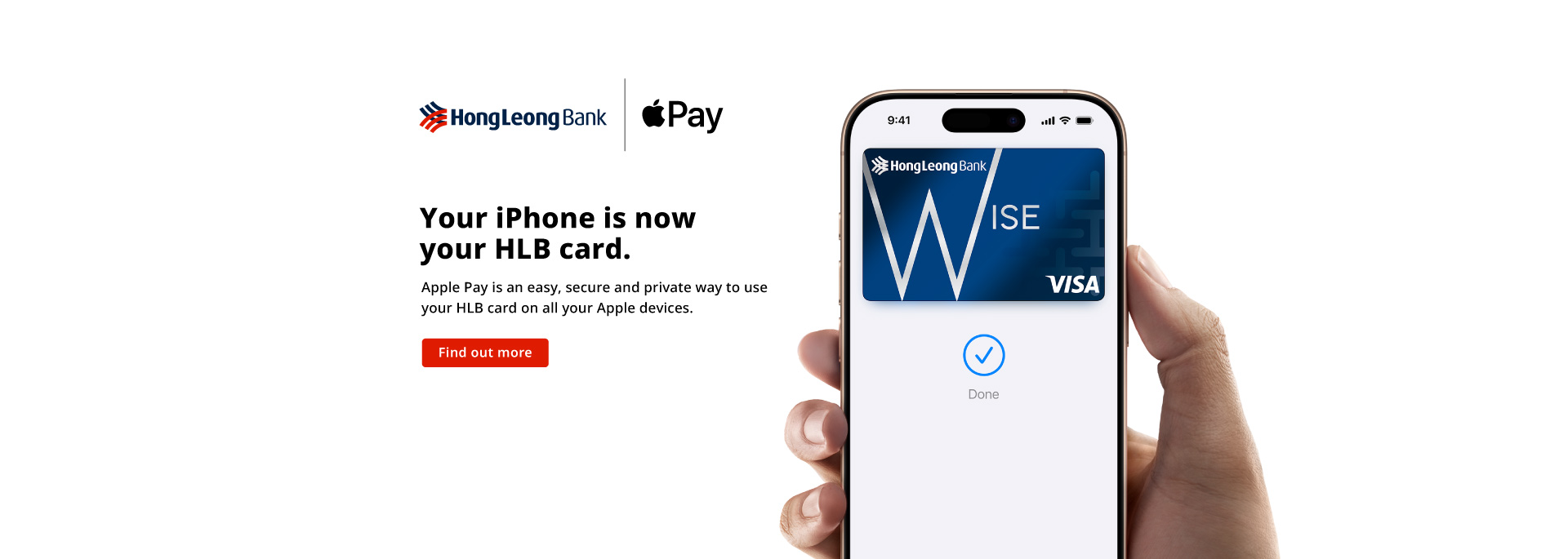
An easy, secure and private way to pay.
Apple Pay is an easy, secure, and private way to use your HLB card on all your Apple devices.


Pay with ease.
On all your Apple devices.
Apple Pay is built into iPhone, Apple Watch, Mac and iPad. Set it up in a few steps and you can easily use your HLB card across all your Apple devices to make purchases online, in apps and in person.

Shop in person. Online.
Or in apps.
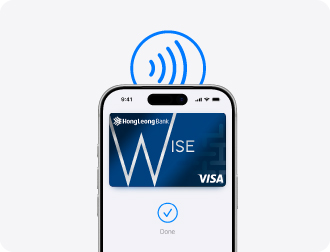
Apple Pay is accepted by millions of merchants around the world – in person, online, or in apps. To use Apple Pay to pay with your HLB card, simply look for the  or
or  at checkout.

An easy checkout
every time.
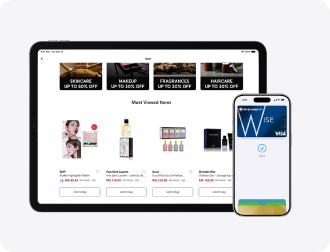
Apple Pay lets you check out with Face ID and Touch ID—helping you save time while you complete purchases with your HLB card online and in apps.
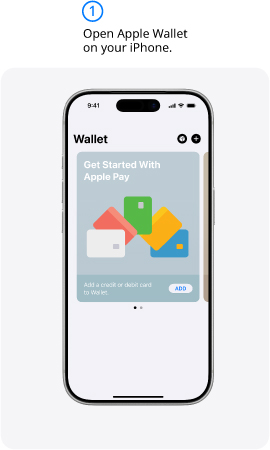
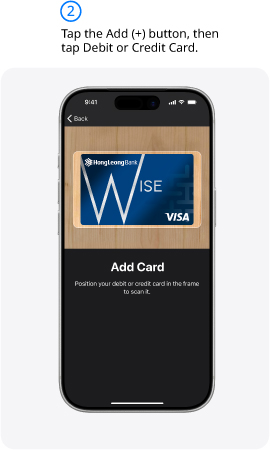
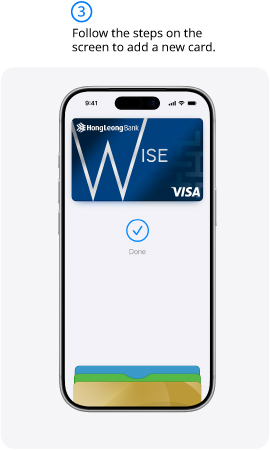
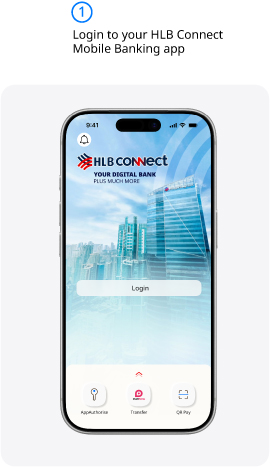
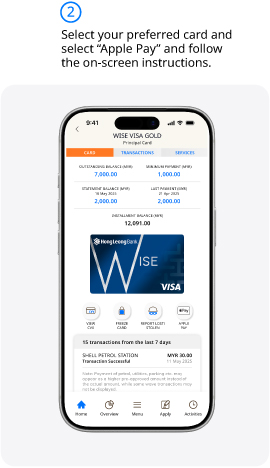
Set up in seconds. Directly on your iPhone.
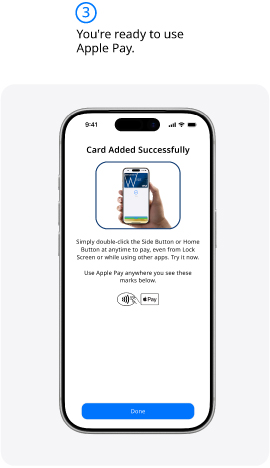

The card benefits you love. With Apple Pay.
When you use your HLB card with Apple Pay, you’ll get the benefits and rewards
you love – just like you would with your physical card.
Frequently Asked Question
1. What is Apple Pay
Apple Pay is a secure and easy-to-use mobile payment service which can be used to make secure purchases in-store and online (in-app or on web) payments using your Apple devices such as iPhone, Apple Watch, iPad and Mac.
2. What is Apple Wallet?
Apple Wallet is a digital wallet application that is pre-installed on Apple devices such as iPhone, Apple Watch, iPad and Mac. It is used for payment cards, transit cards or boarding passes.
3. Which devices support Apple Pay?
Apple Pay works on most iPhone, Apple Watch, iPad and Mac devices. For the latest list of eligible devices, refer to https://support.apple.com/en-us/102896.
4. Which Hong Leong Bank Card is eligible for Apple Pay?
All VISA cards issued by Hong Leong Bank (“HLB”) and Hong Leong Islamic Bank (“HLISB”) are compatible with Apple Pay, except for the following:
-
HLB GSC Credit Cards (Gold & Platinum)
-
HLB Debit Cardholders below the age of sixteen (16)
Updates regarding HLB GSC Credit Card availability will be announced in due course.
5. How can I add my Hong Leong VISA Debit or Credit Card to Apple Pay?
Via HLB Connect App
(a) Login to HLB Connect App via biometric/password.
(b) Swipe left to the Credit Card page.
(c) Select the card you want to add, then tap the “Add to Apple Wallet” button.
(d) Select the Apple device that you want to add your card to.
(e) Accept the HLB Terms & Conditions to complete the process.
(f) Upon successfully adding your HLB Card to Apple Wallet, you will receive a confirmation via in-app notification or email.
Via Apple Wallet
(a) Open the Apple Wallet, tap the “+” symbol on the top right to add your card.
-
Select “Debit or Credit Card”; or
-
Select “Previous Cards” to retrieve a previously used card.
(b) Add your card via NFC tap, camera scan or manual entry of your card details such as your 16-digit card number, expiry date and CVV.
(c) Accept the HLB Terms & Conditions first before the authentication.
Important Note:
To complete the card verification, an OTP will be sent via SMS to your registered mobile number with HLB. If you need to change your registered mobile number, please update it via Hong Leong Connect Online (Settings > Personal, Update Contact Info > Select Credit Cards from the drop-down menu > Update your mobile number). Alternatively, you can visit a Hong Leong Bank branch.
6. When I add my Hong Leong VISA Credit Card on Apple Wallet, does it include both my primary and supplementary cards?
No, primary and supplementary cards need to be added separately.
7. Can I add the same Hong Leong VISA Card to more than one (1) Apple device?
Yes, you can add your same Hong Leong VISA Card up to ten (10) Apple devices.
8. If my Hong Leong VISA Card is blocked or I freeze it, can I add it to Apple Wallet?
No. You cannot add your card to Apple Wallet if the card is currently blocked or freeze.
9. If I haven't activated my physical Hong Leong VISA Debit Card, can I add it to Apple Wallet?
No. You must activate your physical Hong Leong VISA Debit Card fully before you can add it to Apple Wallet. Once the card is activated, you may proceed to add the card into Apple Wallet (refer to Question 5 for the step-by-step guide).
10. If I haven't activated my physical Hong Leong VISA Credit Card, can I add it to Apple Wallet?
When your Hong Leong VISA Credit Card is approved, you can activate the card the next day via HLB Connect App while pending delivery of your physical credit card.
Follow the steps below:
(a) Login to HLB Connect App via biometric/password.
(b) Swipe to the Credit Card page.
(c) Select the card you want activate.
(d) Tap “Yes, Please” to activate the card for online shopping immediately.
(e) Tap “Activate” and “Authorise” when prompted.
(f) Your card is now activated for online purchase.
Refer to this video for a step-by-step guide: https://www.youtube.com/watch?v=KjN0bNrWS7A
After you have completed the above activation process for online purchase, you have the option to add your card to Apple Wallet to use Apple Pay. Refer to Question 5 for the step-by-step guide to add the card into Apple Wallet.
Note: To use the physical credit card at Point-of-Sale (POS) terminals or physical stores, you must still perform the physical card activation once the card arrives. You do not need to re-add the card to Apple Wallet after physical activation.
11. Where can I use Apple Pay?
You can pay with Apple Pay anywhere that accepts contactless payments, when you see Apple Pay logo or contactless symbol during checkout. You will need to authenticate using either Face ID, Touch ID or your device passcode for every transaction.
12. How do I pay with Apple Pay?
Pay with your iPhone
(a) To use your default card:
-
If your iPhone has Face ID, double-click the side button. If prompted, authenticate with Face ID or enter your passcode to open Apple Wallet.
-
If your iPhone has Touch ID, double-click the Home button.
(b) To use a different card, tap your default card to see your other cards. Tap a new card and authenticate.
(c) Hold the top of your iPhone near the contactless reader until “Done” and a tick appear on the display.
Pay with your Apple Watch
(a) Double-click the side button.
(b) Your default card opens automatically. Scroll down to choose another card.
Hold the display of your Apple Watch near the contactless reader until you feel a gentle tap and hear a beep.
13. Is PIN verification required for Apple Pay Transactions?
PIN verification is not required for Apple Pay transactions but you are required to unlock your Apple device to make contactless payment.
14. Is there a transaction limit when I pay using Apple Pay?
The transaction limit for Apple Pay is subject to the available credit limit on your eligible credit cards and retail purchase limit on your eligible debit cards.
15. Can I use Apple Pay overseas?
Yes, you can use Apple Pay overseas where contactless payment is supported.
16. For Hong Leong VISA Debit Card, do I need to enable 'Online Purchases without OTP' in HLB Connect for Apple Pay?
No. It is not required for Apple Pay.
17. For Hong Leong VISA Debit Card, do I need to enable ‘Overseas Transactions’ and ‘Auto Debit/Telephone Order Transactions’ in HLB Connect for Apple Pay?
Yes, you must enable these transactions in HLB Connect for Apple Pay:
(a) Overseas Retail Purchase
(b) Overseas ATM Withdrawal
(c) Auto Debit/Telephone order transactions.
18. Can I add my Hong Leong VISA Card to Apple Wallet if I disabled secure screen lock on my Apple device?
No, you must set up a secured screen lock via Face ID, Touch ID or passcode in order to add your Hong Leong VISA Card into Apple Wallet.
19. What if I cannot Add or Remove my Hong Leong VISA Card from my Apple Wallet?
If you require further assistance with your Hong Leong Visa Card, please contact our Contact Center at 03-7626 8899 between 9AM to 9PM between Monday to Saturday.
20. How do I remove my Hong Leong VISA Card from my Apple Wallet?
You can remove your Hong Leong VISA Card from HLB Connect Mobile Banking App or Online Banking or Apple Wallet.
21. What should I do if my device is lost or stolen?
You should call our Contact Center at 03-7626 8899 immediately to deactivate and block all the Apple tokens on the device.
You are also advised to use “Find My’ app or icloud.com to mark the device as lost and suspend all the payment cards.
22. What should I do if my payment cards are lost/stolen?
You must call our Contact Center immediately at 03-7626 8899 to report the card loss. For lost/stolen card, you may report it via Connect App or Online Banking if you have registered for Connect.
Once the payment card is reported as lost and/or blocked, you will no longer be able to use that card via Apple Pay on your device.
23. Does Apple have access to my Hong Leong Bank accounts?
No, Apple does not have access to your Hong Leong Bank accounts.
24. Do you have any security tips regarding Apple Pay?
-
Use Face ID/Touch ID or a strong 6-digit passcode. Do not share your phone or allow unauthorized access.
-
Do not jailbreak your device and only install apps from the official App Store.
-
Do not disclose your card details (number, pin, CVV) to anyone via calls, texts, or emails.
-
Closely monitor transaction alerts and review statements regularly.
-
If your phone is compromised or stolen, immediately use "Find My" to wipe cards and call our Contact Center at 03-7626 8899 to report the compromise.
-
For lost/stolen card, you may report via Connect App or Online Banking if you have registered for Connect.
-
Keep your iOS/watchOS/macOS updated and use 2FA on your Apple ID.
-
When directed to a login page, only enter your password when you see your correct security picture.
-
Always check your transaction details before approving it on AppAuthorise and pay attention to your transaction alerts. Immediately activate Emergency Lock if you notice unauthorised transactions or suspect your HLB Connect has been compromised.
-
Keep your mobile operating system up-to-date and only download apps from the official app stores such as Google Play Store, Apple App Store & Huawei AppGallery.
-
Perform regular virus and malware scan on your computer and mobile devices.
-
Do not click on suspicious links and always verify the authenticity of messages sent by your bank.
-
Pay attention to the security tips and warnings that we share.
-
If you think you are a victim of scam, call us immediately at 03-76268899.
-
To understand how we manage and protect your personal data, please read our Privacy Notice.
25. How can I keep track of purchases I have made with Apple Pay?
You can view the recent transactions made with your Hong Leong VISA Card on Apple Wallet. Simply tap on Hong Leong VISA Card in the app to see the recent Apple Pay transactions made with that respective card.
26. Are there any cost for using Apple Pay?
No, there is no cost for using Apple Pay.
27. Will my payment card(s) work on Apple Pay if my physical card is cancelled or blocked?
If your physical card is cancelled or blocked, you can no longer use it to make payments using Apple Pay. If you require further assistance with your physical card, please call our Contact Center immediately at 03-7626 8899.
28. I have just received my renewed credit card. Do I need to re-add my credit card details in Apple Pay?
Same Card Number Replacement (Expiry or Wear & Tear)
If the replacement credit card is due to expiry or wear and tear (same card number replacement), you do not need to add the card into Apple Pay. Once you received the card and activate the card, the existing card / token in your Apple Pay will continue to work;
Different Card Number Replacement (Lost, Stolen, or Fraud)
If the replacement card is of a different card number, you will need to add your new card into Apple Pay (refer to Question 5 for the step-by-step guide).